Quick answer
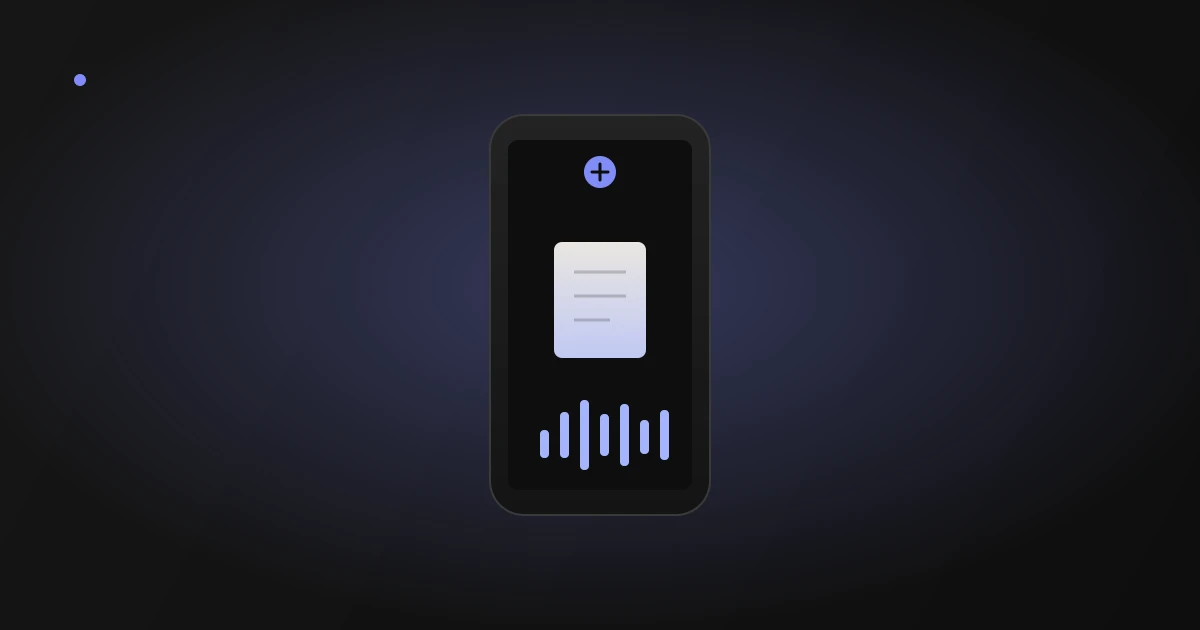
To turn a PDF or EPUB into an audiobook, you don't need a file converter or any editing software — you need an app with built-in AI text-to-speech. Download your book file to your device, open oBook, tap the + icon at the top, and choose your book. That's it: the app reads it aloud immediately, with no conversion step in between.
Why you don't need to "convert" the file at all
Software that reads written text aloud using a synthesized voice, without requiring the original file to be changed into a different format first.
A lot of people assume turning a PDF into an audiobook means converting it into an MP3 first, the way you'd convert a video file. It doesn't. A text-to-speech reading app reads the file directly and generates audio as you listen, so the PDF or EPUB stays exactly as it is — you're just choosing to hear it instead of read it.
Key takeaways
- You don't need to convert a PDF or EPUB into another file format to listen to it.
- A text-to-speech reading app reads the file directly and speaks it aloud.
- Importing a book into oBook takes four steps and no configuration.
- Scanned PDFs need actual selectable text, not just a page image, to be read aloud.
- The same import process works for both PDF and EPUB files.
Want to listen instead of read? Try reading along with oBook, free.
Try oBook freeComparing your options
| Phone's built-in reader | Online PDF-to-MP3 converter | oBook | |
|---|---|---|---|
| Setup required | None, but buried in settings | Upload and wait for conversion | Import once, done |
| Natural-sounding voice | Varies by device | Varies by tool | Natural AI voices |
| Synced text highlighting | Rarely | No | Yes |
| Chapter navigation | No | No | Yes |
| Works with EPUB | Inconsistent | Sometimes | Yes |
Tip
If your PDF was scanned from a physical book and the text isn't selectable, run it through an OCR tool first. Once the text is selectable, any text-to-speech app, including oBook, can read it normally.
How to do it in oBook
Download the file
Save the PDF or EPUB you want to listen to onto your device, so it's ready to import.
Open oBook
Launch the app on your phone.
Tap the + icon at the top
This opens the import screen where you can add a new book to your library.
Choose your book
Select the file you just downloaded. oBook imports it and it's ready to listen to right away — done.
Once it's imported, you can pick a voice, adjust the reading speed, and follow along with synchronized text highlighting while you listen — all without ever having touched a file converter.
The oBook Team
Reading habit research at oBook
Frequently asked questions
Yes. oBook's AI text-to-speech reads PDF and EPUB files aloud for free, with no separate conversion step required.